If you own a website, run a business, manage a blog, or work in digital marketing, you have probably heard of Google Search Console. But how often do you actually open it?
Many website owners spend hours creating content, designing landing pages, running advertisements, and posting on social media. They invest time and money in building their online presence, but often overlook one of the most useful free tools available to them: Google Search Console.
A website can look professional and still struggle to appear in Google search results. Your pages might not be indexed, your keywords might not be performing as expected, or Google might not be able to access important parts of your website. Without the right information, it becomes difficult to understand what is happening behind the scenes.
This is where Google Search Console becomes valuable.
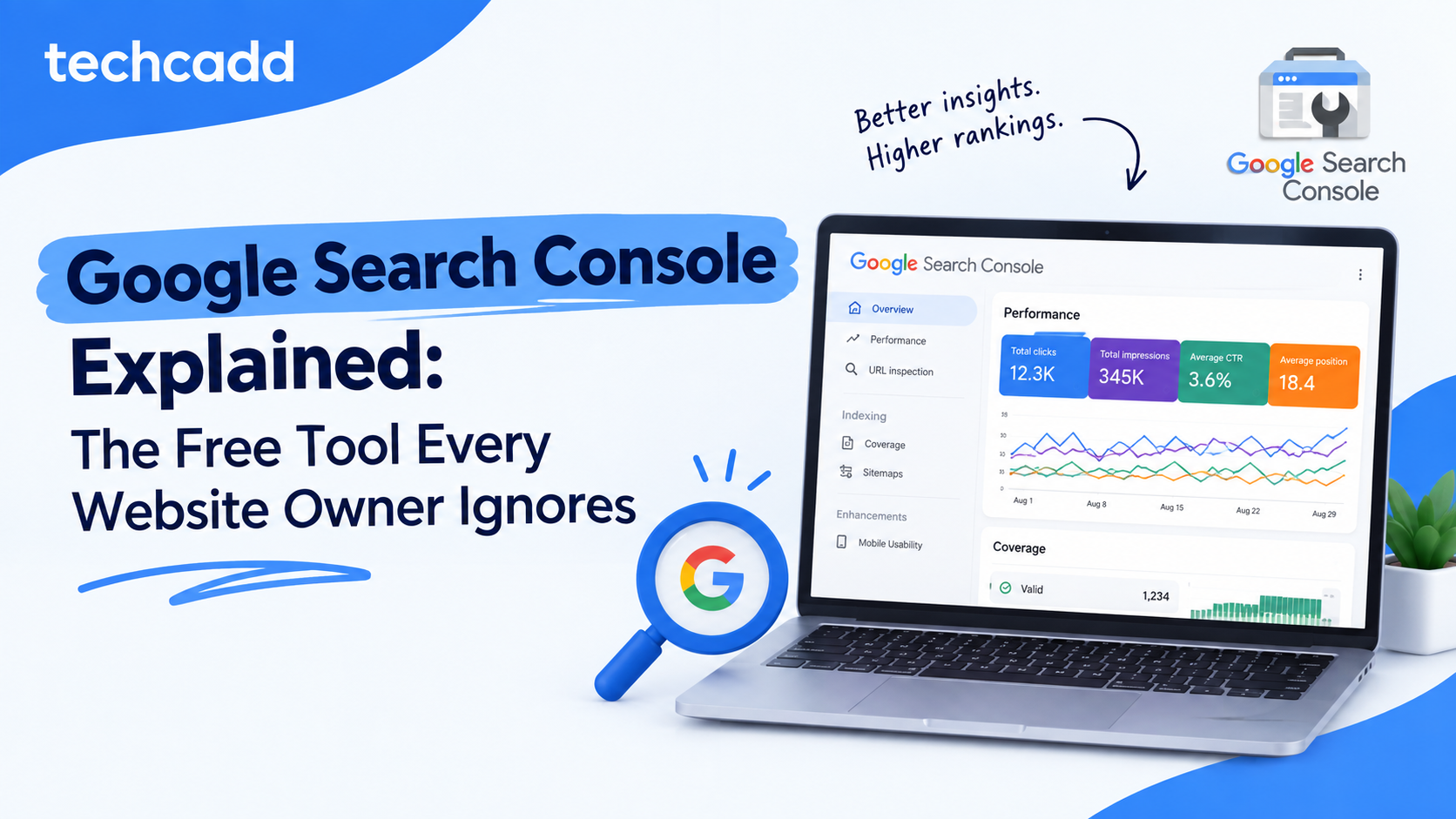
Google Search Console is a free tool that helps website owners understand how their websites appear in Google Search. It provides information about search performance, indexing, search queries, technical issues, Core Web Vitals, and more. Whether you are a beginner, blogger, business owner, SEO professional, or digital marketing student, learning Google Search Console can help you make better website decisions.
In this beginner-friendly guide, we will explain Google Search Console from the basics to practical use. You will learn what Google Search Console is, how to set it up, how to check indexing, understand search performance, identify SEO issues, submit a sitemap, and use the data to improve your website.
By the end, you will understand why this free SEO tool deserves a regular place in your website management routine.
What Is Google Search Console?
Google Search Console, commonly called GSC, is a free service provided by Google that helps website owners monitor, maintain, and troubleshoot their website's presence in Google Search.
It shows how Google discovers and indexes your website and provides data about how users find your pages through organic search.
In simple words, Google Search Console helps you answer questions such as:
Is my website appearing on Google?
Which pages of my website are indexed?
What keywords are people searching for before clicking my website?
How many times is my website shown in Google search results?
Which pages are receiving the most organic traffic?
Are there any indexing problems?
Is my website mobile-friendly?
Are there technical issues affecting search visibility?
Which pages need SEO improvement?
For example, imagine you have a website for a digital marketing training institute in Ludhiana. You publish a blog titled "Best Digital Marketing Courses in Ludhiana."
After a few weeks, you want to know whether Google is showing that blog to users searching for digital marketing courses.
Google Search Console can help you check:
Whether Google has indexed the blog.
How many times the blog appeared in search results.
Which search queries triggered the page.
How many people clicked the page.
The average position of the page for those searches.
Whether Google has reported any indexing or experience issues.
This information is useful because you are not relying only on assumptions. You can examine actual Google Search performance data and make informed SEO decisions.
Is Google Search Console the Same as Google Analytics?
No. Google Search Console and Google Analytics are different tools, although they work well together.
Google Search Console focuses mainly on your website's visibility and performance in Google Search.
Google Analytics focuses on what users do after they visit your website, including engagement, traffic sources, conversions, and user behavior.
For example:
Google Search Console can tell you that 1,000 people clicked your website from Google Search.
Google Analytics can help you understand what those visitors did after arriving, such as viewing course pages, filling out an inquiry form, or leaving the website.
Both tools are useful for SEO and digital marketing, but they answer different questions.
Why Every Website Owner Should Use Google Search Console
Many website owners believe SEO means adding keywords to blog posts, writing meta descriptions, and building backlinks. These activities can be part of SEO, but successful website optimization also requires understanding how Google discovers, indexes, and displays your content.
Google Search Console provides information that is difficult to obtain from your website dashboard alone.
1. It Helps You Understand Your Google Search Visibility
Your website may be online, but that does not automatically mean every page appears in Google Search.
Google Search Console lets you examine whether your pages are indexed and whether your website is receiving impressions and clicks from organic search.
Suppose you publish 20 blog posts but only 12 are indexed. The remaining pages may need investigation.
Possible reasons include:
Google has not discovered the pages yet.
The pages contain indexing instructions that prevent indexing.
Google encountered a crawling issue.
The pages are duplicates.
The pages are not considered suitable for indexing at that time.
Your website has technical problems.
Google Search Console helps you investigate these situations.
2. It Shows the Keywords Bringing Visitors to Your Website
One of the most useful features of Google Search Console is the Performance report.
This report shows search queries associated with your website's appearance in Google Search.
For example, a digital marketing website might appear for queries such as:
Digital marketing course in Ludhiana.
SEO course in Ludhiana.
Best digital marketing institute.
Google Ads training.
Digital marketing internship.
Learn SEO for beginners.
The report helps you understand which searches are connected to your website.
This is valuable for keyword research because you may discover search terms you had not intentionally targeted.
For example, a page created around "SEO training" might also receive impressions for "SEO classes in Ludhiana."
That information can help you improve the page's content, headings, and internal links where appropriate.
3. It Helps You Find Indexing Problems
A website page must generally be indexed to appear in Google Search results.
Google Search Console's Page Indexing report provides information about which pages Google has indexed and which pages have issues or are not indexed.
This is especially useful for websites with:
Many blog posts.
Product pages.
Service pages.
Course landing pages.
WordPress websites.
Shopify stores.
Large business websites.
If an important page is not indexed, it may not receive organic search visibility.
Instead of guessing, you can use the report to investigate the reason.
4. It Helps You Identify Pages That Need Improvement
A page might receive thousands of impressions but very few clicks.
This could indicate that the page is appearing in search results but is not attracting enough users.
Possible factors include:
The page title does not match search intent.
The search result is less appealing than competing results.
The content does not clearly answer the user's question.
The page is appearing for searches that are not highly relevant.
The average position is too low for many queries.
Google Search Console does not automatically tell you the exact reason for low clicks, but it provides data that helps you investigate.
5. It Is Free
Google Search Console is available at no cost.
This makes it especially useful for:
Small businesses.
Freelancers.
Bloggers.
Students learning SEO.
Startups.
Website developers.
Digital marketing agencies.
You do not need to purchase an expensive SEO subscription just to start understanding your website's Google Search performance.
Third-party SEO tools can provide additional keyword research, backlink analysis, and competitor data, but Google Search Console is an important starting point because it provides data directly related to your website's presence in Google Search.
How Does Google Search Console Work?
To understand Google Search Console, you should first understand the basic process Google uses to discover and organize web pages.
The process can be explained in three major stages:
Crawling.
Indexing.
Serving search results.
Crawling
Crawling is the process through which Google discovers and accesses web pages.
Google uses automated programs called crawlers, including Googlebot, to discover URLs and retrieve page content.
Google may discover a page through:
Links from other websites.
Internal links on your website.
XML sitemaps.
Previously known URLs.
Other discovery methods.
For example, imagine you publish a new blog on your website.
If Google discovers the blog URL, it may attempt to crawl the page.
However, discovery does not guarantee indexing.
Indexing
Indexing is the process of analyzing and storing information about pages that Google considers eligible for its search index.
Google evaluates the page's content and other signals to determine whether it can be indexed.
A page may fail to appear in the index for different reasons, including technical problems, duplicate content, indexing directives, or other Google processing decisions.
Google Search Console can help you understand the reported indexing status of your pages.
Serving Search Results
When someone searches on Google, Google determines which results to display based on many factors, including relevance, quality, and other ranking systems.
If your page is indexed and eligible to appear for a query, it may be shown in search results.
Google Search Console helps you examine how your pages performed when they appeared in Google Search.
The Simple Example
Imagine you have a page called:
"Best Digital Marketing Course in Ludhiana."
The process might look like this:
You publish the page → Google discovers the URL → Google crawls the page → Google evaluates it for indexing → The page may enter Google's index → The page may appear for relevant searches → Users may click the result.
Google Search Console gives you information about several parts of this journey.
How to Set Up Google Search Console
Setting up Google Search Console is relatively simple. You need access to your website and the ability to verify ownership of the property you want to manage.
Step 1: Open Google Search Console
Visit the official Google Search Console website:
https://search.google.com/search-console
Sign in using your Google account.
You will need to add your website as a property.
Step 2: Choose a Property Type
Google Search Console provides two main property types:
Domain property.
URL-prefix property.
The choice depends on what you want to verify and manage.
Domain Property
A Domain property covers the entire domain and its relevant variations.
For example:
A Domain property can include:
Relevant subdomains.
Domain properties use DNS verification.
This option is useful when you want a broad view of your domain's Google Search presence.
URL-Prefix Property
A URL-prefix property covers URLs that begin with a specific prefix.
For example:
A URL-prefix property can be verified using supported methods such as an HTML file, HTML tag, Google Analytics, or Google Tag Manager, depending on the available setup.
It is important to choose the correct property because different versions of a website may be treated as separate properties under URL-prefix verification.
Step 3: Verify Website Ownership
Google needs to confirm that you have permission to access the website's Search Console data.
The verification method depends on your property type.
Common verification methods include:
DNS Verification
DNS verification is commonly used for Domain properties.
You add a Google-provided TXT record to your domain's DNS settings.
For example, your domain provider may be:
GoDaddy.
Namecheap.
Cloudflare.
Hostinger.
Another DNS provider.
You copy the TXT record provided by Google and add it to your DNS settings.
After the record is available, you return to Google Search Console and click Verify.
DNS changes can take time to propagate.
HTML Tag Verification
For a URL-prefix property, Google may provide an HTML meta tag.
You add the tag to the head section of your website.
On WordPress, this may be done using a suitable SEO plugin, a supported verification plugin, or another method recommended by your website setup.
You should avoid editing theme files without understanding the consequences.
HTML File Upload
Google may provide an HTML verification file.
You upload it to the specified location on your website's server and then complete verification in Search Console.
Step 4: Open Your Property
Once your website is verified, you can access the Google Search Console dashboard.
The dashboard provides an overview of available reports, including:
Performance.
Indexing.
Experience.
Enhancements.
Security and Manual Actions.
Settings.
The exact reports available may depend on your property and Google's current Search Console interface.
Understanding the Google Search Console Dashboard
The dashboard is the central place where you access information about your website's Google Search presence.
The most important reports for beginners are Performance and Page Indexing.
Performance Report
The Performance report helps you understand how your website performs in Google Search.
It includes important metrics such as:
Total clicks.
Total impressions.
Average click-through rate.
Average position.
These metrics are essential for measuring organic search visibility.
Indexing Reports
The Indexing section includes reports that help you investigate whether Google has indexed your pages.
The Page Indexing report is particularly useful for understanding indexed and non-indexed URLs.
The Sitemaps report lets you submit and inspect XML sitemaps.
The URL Inspection tool helps you investigate individual URLs.
Experience Reports
Experience-related reports may include information about:
Core Web Vitals.
HTTPS.
Mobile-related experience information, depending on Google's current reporting.
Other available page experience signals.
These reports can help identify technical and usability issues.
Security and Manual Actions
Google Search Console also includes reports for security issues and manual actions.
A security issue may indicate that Google has detected a problem such as harmful content or hacking-related concerns.
A manual action is a Google Search enforcement action related to a website's violation of applicable spam policies.
These reports should be checked when investigating serious search visibility problems.
Google Search Console Performance Report Explained
The Performance report is one of the most useful sections in Google Search Console.
It provides search data for your website over a selected period.
Let's understand its four main metrics.
1. Total Clicks
Total clicks represent the number of clicks from Google Search results to your website during the selected reporting period.
For example, if your website receives 250 clicks from Google Search, the report may show 250 total clicks for that period.
Clicks are useful because they indicate how many users visited your website through Google Search results.
However, clicks alone do not tell you whether those visitors became customers or completed an inquiry form.
2. Total Impressions
Impressions represent how often your website's search results were shown in Google Search.
For example, if your page appeared in search results 5,000 times, it may receive 5,000 impressions.
Impressions help you understand search visibility.
A page with high impressions but low clicks may need further investigation.
3. Average Click-Through Rate
Click-through rate, commonly called CTR, measures the percentage of impressions that resulted in clicks.
The basic formula is:
CTR = (Clicks ÷ Impressions) × 100
For example:
Clicks = 100
Impressions = 2,000
CTR = (100 ÷ 2,000) × 100
CTR = 5%
This means the page received clicks from 5% of its reported impressions.
CTR can vary depending on the query, position, search feature, device, and other factors.
A low CTR is not automatically a problem because some searches may be informational, navigational, or served with different search result layouts.
4. Average Position
Average position is a Search Console metric that summarizes the average position of your site's highest result in the reported impressions.
It is not a simple ranking number for every keyword.
For example, a page may rank differently for different queries.
One query may show the page in position 4, while another may show it in position 18.
The overall average position combines the reported data.
This is why you should examine individual queries and pages instead of relying only on the average position.
How to Read Search Console Data Like a Beginner
Imagine your website has the following data for a selected period:
Total clicks: 500
Total impressions: 10,000
CTR: 5%
Average position: 12
What does this mean?
The website received 500 clicks from Google Search.
Its results appeared 10,000 times in the selected report.
The reported click-through rate was 5%.
The average position metric was 12.
These numbers provide a useful overview, but they do not tell the whole story.
You should also examine:
Which pages received the most clicks.
Which queries generated impressions.
Which queries generated clicks.
Which pages have high impressions but low CTR.
Whether performance changed compared with a previous period.
Whether important pages are indexed.
Whether search performance differs between mobile and desktop.
Why You Should Not Judge SEO Only by Clicks
Clicks are important, but SEO is not only about traffic volume.
A website may receive fewer clicks but generate more relevant inquiries.
For example, a course page receiving 100 visits from highly relevant searches may generate more qualified leads than a blog receiving 1,000 visits from unrelated searches.
For a business website, you should combine Search Console data with conversion data from tools such as Google Analytics or your CRM.
How to Use the Search Queries Report
The Queries tab in the Performance report shows search queries associated with your website's search results.
This is one of the best places to discover what people are searching for before they find your website.
Example of Search Queries
Suppose you run a website offering digital marketing training.
Your Search Console data may show queries such as:
"Digital marketing course in Ludhiana"
"SEO classes near me"
"Best digital marketing training"
"Google Ads course"
"Digital marketing internship"
These queries can help you understand how people discover your content.
Find New Keyword Opportunities
You may discover that your page is appearing for a search term you did not specifically target.
For example, you wrote a blog about SEO tools, but the page also appears for "SEO tools for beginners."
This could be an opportunity to improve the content by adding a useful section that addresses beginners' needs.
However, you should not add keywords unnaturally just because they appear in Search Console.
The goal is to create content that satisfies user intent.
Find Keywords With High Impressions and Low Clicks
Suppose a page receives:
Impressions: 4,000
Clicks: 40
CTR: 1%
This page may deserve closer examination.
Possible improvements include:
Making the title more descriptive.
Improving the opening content.
Better matching the search intent.
Improving the page's relevance to the search query.
Checking competing search results.
Making the page easier to understand.
You should not assume that changing the title alone will solve the problem.
Find Keywords With High Clicks
High-click queries can reveal topics that already work well for your website.
For example, if a page receives clicks for "digital marketing course syllabus," you may consider creating related content about:
Digital marketing course duration.
Digital marketing tools.
Digital marketing career scope.
SEO course syllabus.
Digital marketing practical training.
These related topics can support a broader content strategy.
How to Use the Pages Report
The Pages tab shows which website pages are associated with your Google Search performance.
This report helps you understand which URLs receive the most clicks and impressions.
Identify Your Top-Performing Pages
You may discover that your homepage is not your highest-traffic page.
For example:
Digital marketing course page.
SEO training blog.
Contact page.
Homepage.
Google Ads course page.
This can happen because users often enter a website through a specific blog or landing page rather than the homepage.
Find Pages With High Impressions but Low Clicks
These pages may have opportunities for improvement.
Suppose a blog receives:
Impressions: 8,000
Clicks: 80
CTR: 1%
You can investigate the queries and average positions associated with that page.
The page may appear for many broad queries, or it may be ranking lower than expected.
The correct action depends on the data.
Find Pages With Low Impressions
A page with low impressions may have limited search visibility.
Possible reasons include:
The topic has low search demand.
The page is new.
Google has not indexed it.
The page targets a competitive keyword.
The content does not match the search intent.
The page has technical issues.
Search Console helps you investigate these possibilities.
How to Use the Countries and Devices Reports
Google Search Console also provides breakdowns of performance by country and device.
These reports can help you understand where your organic search audience is coming from.
Countries
Suppose your website targets users in India.
The Countries report may show impressions and clicks from different countries.
This can help you understand whether your website is receiving search visibility from the locations relevant to your business.
For a local training institute, country data is only one part of the picture. You may also need local SEO tools and business profile data to understand performance in a specific city.
Devices
The Devices report typically allows you to compare performance between:
Mobile.
Desktop.
Tablet.
This is important because many users browse websites on mobile phones.
If your website receives most of its search impressions on mobile devices, you should ensure that your website is easy to use on smaller screens.
Check:
Font size.
Button spacing.
Navigation.
Page loading.
Form usability.
Image display.
Mobile layout.
What Is URL Inspection in Google Search Console?
The URL Inspection tool helps you examine how Google sees a specific URL.
It is useful when you want to investigate:
Whether a page is indexed.
Whether Google can access a page.
The page's indexing status.
Canonical information.
Crawl-related details.
Available enhancements or issues.
For example, you publish a new blog and want to check whether Google has indexed it.
You can enter the full URL into the URL Inspection tool.
Google will show information about the URL and may provide options such as requesting indexing when applicable.
How to Inspect a URL
Step 1: Open Google Search Console
Select the correct website property.
Step 2: Find URL Inspection
Use the inspection field at the top of the Search Console interface.
Step 3: Enter the Full URL
For example:
https://example.com/blog/google-search-console-guide/
Step 4: Review the Results
Look for information about the URL's indexing status and other available details.
Step 5: Request Indexing if Appropriate
If the page is new or has been updated, you may be able to request indexing.
However, requesting indexing does not guarantee immediate crawling or inclusion in Google Search.
Google decides when and whether to crawl and index a page.
Why URL Inspection Is Useful
Imagine you publish a high-value course landing page, but it does not appear in Google Search.
Instead of waiting without information, you can inspect the URL.
You may discover that:
The page is already indexed.
The page has an indexing issue.
Google has not yet processed the page.
A canonical URL points elsewhere.
The page is blocked by a technical directive.
The tool helps you investigate the situation.
What Is Google Indexing?
Indexing is one of the most important concepts in SEO.
When Google indexes a page, it stores information about that page in its search index.
However, being indexed does not guarantee high rankings.
A page can be indexed and still receive little or no organic traffic.
Indexed vs Not Indexed
An indexed page may be eligible to appear in relevant Google Search results.
A non-indexed page generally will not appear in ordinary Google Search results.
This distinction is important because many beginners assume that publishing a page automatically makes it searchable.
That is not always the case.
Why Pages May Not Be Indexed
Google Search Console may report several reasons for pages not being indexed.
Common examples include:
Crawled - currently not indexed.
Discovered - currently not indexed.
Excluded by noindex tag.
Page with redirect.
Duplicate without user-selected canonical.
Alternate page with proper canonical tag.
Blocked by robots.txt.
Server errors.
Soft 404.
Other reported reasons.
The exact reasons and classifications depend on Google's current reporting.
Crawled - Currently Not Indexed
This status generally means Google crawled the page but has not included it in the index.
Possible factors include:
Content quality.
Duplicate content.
Overall website structure.
Technical considerations.
Google's indexing systems.
It does not automatically mean that the page is permanently rejected.
Discovered - Currently Not Indexed
This means Google has discovered the URL but has not yet crawled it.
Possible reasons include:
The website is new.
The page has limited internal links.
Google has not scheduled crawling yet.
The website has crawl-related limitations.
Improving site structure and making important pages easy to discover can help.
Excluded by Noindex Tag
A noindex directive tells search engines not to index a page.
This may be intentional for pages such as:
Thank-you pages.
Certain internal pages.
Duplicate utility pages.
Private or low-value sections.
However, if an important landing page has accidentally been marked noindex, it needs investigation.
Duplicate Without User-Selected Canonical
This status may indicate that Google has identified a duplicate or substantially similar page and selected a different canonical URL.
Duplicate URLs can occur due to:
URL parameters.
Similar content.
Multiple versions of a page.
E-commerce filters.
Website configuration.
The correct solution depends on the site's structure.
What Is an XML Sitemap?
An XML sitemap is a file that provides information about important URLs on your website.
It helps search engines discover pages that you want them to know about.
For many websites, the sitemap is available at a URL such as:
https://example.com/sitemap.xml
WordPress websites may generate sitemaps through their core functionality or SEO plugins.
Other website platforms may provide their own sitemap systems.
Why Is a Sitemap Important?
A sitemap can help Google discover important pages, especially when:
Your website is new.
Your website has many pages.
Some pages are not well connected through internal links.
You publish content regularly.
Your website has a large structure.
A sitemap is not a guarantee that Google will crawl or index every URL included in it.
How to Submit a Sitemap
Step 1: Open Google Search Console
Select your website property.
Step 2: Open Sitemaps
Find the Sitemaps section in the indexing area.
Step 3: Enter Your Sitemap URL
For example:
sitemap.xml
Or use the complete sitemap URL if required by the interface.
Step 4: Click Submit
Google will process the submitted sitemap and provide status information.
Sitemap Best Practices
Your sitemap should generally include important, indexable URLs.
Avoid including URLs that are:
Blocked from crawling.
Marked noindex.
Redirected.
Unnecessary duplicate pages.
Keep your sitemap updated as your website changes.
What Is Robots.txt?
The robots.txt file provides instructions to crawlers about which areas of a website they may access.
It is usually located at:
https://example.com/robots.txt
Robots.txt is different from an XML sitemap.
A sitemap helps communicate important URLs.
Robots.txt provides crawling instructions.
Example
A robots.txt file might contain:
User-agent: *
Disallow: /private/
This example asks compliant crawlers not to crawl the /private/ path.
However, robots.txt is not a reliable way to protect sensitive information. Private information should be protected using proper access controls.
Common Robots.txt Mistakes
Some website owners accidentally block important areas of their website.
For example, a poorly configured robots.txt file may prevent Google from crawling important pages.
If your pages are not appearing in Google Search, check whether robots.txt could be part of the problem.
Google Search Console can help you investigate indexing and crawling reports.
What Is the URL Canonical Tag?
A canonical tag helps communicate which URL is the preferred version of a page when multiple URLs contain duplicate or substantially similar content.
For example, a website might have several URLs that display similar information.
A canonical tag can help search engines understand which version should be treated as the preferred URL.
Why Canonical Tags Matter
Canonical tags are particularly useful for:
E-commerce websites.
Websites with URL parameters.
Duplicate pages.
Similar content.
Multiple URL variations.
However, canonical tags are hints rather than absolute commands. Google may select a different canonical URL based on its systems.
Example
Suppose your website has:
https://example.com/course?source=google
Both URLs may display the same content.
A canonical tag can help indicate the preferred URL.
If you manage an e-commerce website, canonicalization can become especially important because filters and sorting options can create many URL variations.
What Are Core Web Vitals?
Core Web Vitals are a set of metrics used to assess aspects of user experience on web pages.
Google Search Console provides a Core Web Vitals report that helps website owners understand reported page experience performance.
The main Core Web Vitals metrics are:
Largest Contentful Paint, or LCP.
Interaction to Next Paint, or INP.
Cumulative Layout Shift, or CLS.
Largest Contentful Paint
LCP measures loading performance.
It focuses on how quickly the largest visible content element becomes rendered.
A slow LCP can make a page feel slow to users.
Possible reasons include:
Large images.
Slow server response.
Render-blocking resources.
Heavy JavaScript.
Poor caching.
Interaction to Next Paint
INP measures interaction responsiveness.
It helps evaluate how quickly a page responds to user interactions.
Examples include:
Clicking a button.
Opening a menu.
Selecting a form field.
Interacting with a page element.
A high INP may indicate that the page is slow to respond.
Cumulative Layout Shift
CLS measures visual stability.
It focuses on unexpected movement of page content while loading.
For example, imagine you are about to click a button, but an image loads above it and pushes the button downward.
That is an example of an unexpected layout shift.
Why Core Web Vitals Matter
Core Web Vitals can help you identify user experience problems.
However, improving Core Web Vitals alone does not guarantee higher Google rankings.
SEO involves many factors, including relevance, content quality, technical accessibility, and other signals.
How to Use Google Search Console for WordPress
WordPress is one of the most popular website platforms, and Google Search Console is useful for WordPress website owners.
Whether you run a blog, business website, service website, or online course website, GSC can help you monitor organic search performance.
Step 1: Verify Your Website
Choose Domain or URL-prefix verification.
Step 2: Generate an XML Sitemap
WordPress core functionality or your SEO plugin may generate a sitemap.
Check the sitemap URL and submit it through Search Console.
Step 3: Check Important Pages
Inspect:
Homepage.
About page.
Contact page.
Service pages.
Course pages.
Blog posts.
Landing pages.
Step 4: Review Indexing
Check whether important pages are indexed.
If a page is not indexed, investigate the reason.
Step 5: Monitor Search Performance
Review queries, clicks, impressions, CTR, and average position.
Step 6: Improve Content
Use search query data to understand what your audience is searching for.
Improve pages based on relevance and user needs.
Step 7: Check Technical Issues
Review:
Indexing reports.
Core Web Vitals.
HTTPS.
Security issues.
Manual actions.
WordPress SEO Plugins and Search Console
SEO plugins can help with sitemap generation, metadata, canonical tags, and other website optimization tasks.
However, a plugin does not automatically guarantee SEO success.
You still need to check whether Google can access, crawl, and index your important pages.
How to Use Google Search Console for Shopify
Shopify website owners can also use Google Search Console to monitor their website's search presence.
Shopify automatically manages many technical aspects of a website, but website owners should still understand indexing and search performance.
Important Shopify SEO Checks
Verify the correct domain.
Check sitemap availability.
Inspect important product pages.
Check collection pages.
Review indexing issues.
Monitor search queries.
Check mobile usability and page performance.
Review canonical behavior.
Shopify Sitemap
Shopify stores commonly provide a sitemap through the store's sitemap URL.
You can submit the relevant sitemap in Google Search Console.
Product Pages and Indexing
If an important product page is not indexed, investigate its status.
Possible factors include:
Product availability.
Page content.
Duplicate URLs.
Canonical settings.
Website structure.
Google indexing decisions.
Search Console can help identify the reported status of individual URLs.
Common Google Search Console Errors and Their Meaning
Search Console may show errors or warnings that require investigation.
Let's understand some common examples.
1. Server Error
A server error generally means Google encountered a server-related problem while accessing a URL.
For example, a page might return a 5xx HTTP status.
Possible causes include:
Hosting problems.
Server overload.
Application errors.
Incorrect server configuration.
2. Redirect Error
A redirect error can occur when Google encounters a problematic redirect setup.
Examples include:
Redirect loops.
Excessive redirect chains.
Incorrect redirect configuration.
Check your redirects and ensure important URLs resolve correctly.
3. Soft 404
A soft 404 is a page that appears to Google as if it is not a valid or useful page, even though it may return a normal HTTP response.
For example, a page might show "This product is unavailable" without returning an appropriate not-found status when the content is effectively missing.
The correct fix depends on the page's purpose.
4. Blocked by Robots.txt
This status indicates that Google was blocked from crawling a URL by robots.txt.
If the URL is important, check whether the blocking rule is intentional.
5. Redirected Page
A redirected URL may not be indexed as the final destination page.
This is normal in many cases.
For example, an old page may redirect to a new page.
6. Mobile Usability Problems
Google Search Console may report mobile-related issues depending on Google's current reporting.
These issues may involve:
Text that is difficult to read.
Content wider than the screen.
Elements placed too closely together.
Mobile display problems.
A responsive website helps provide a better experience across devices.
Google Search Console vs Google Analytics
Many beginners confuse Google Search Console with Google Analytics.
Both are useful, but their roles are different.
Google Search Console
Google Search Console helps you understand:
Google Search impressions.
Organic search clicks.
Search queries.
Average position.
Indexing status.
Search-related technical issues.
Google Analytics
Google Analytics helps you understand:
Website visitors.
Traffic sources.
Engagement.
Events.
Conversions.
User behavior.
Example
Suppose a digital marketing institute publishes a blog.
Google Search Console shows:
The blog received 500 clicks from Google Search.
Google Analytics may show:
Those visitors spent time reading the blog, visited the course page, and some submitted an inquiry form.
The two tools provide different parts of the picture.
Should You Use Both?
Yes, if you want a more complete understanding of your website's performance.
Search Console helps you understand search visibility.
Analytics helps you understand what visitors do after arriving.
Google Search Console for Keyword Research
Google Search Console can support keyword research by showing real search queries connected to your website.
It is not a complete replacement for a keyword research tool, but it is useful for understanding existing search performance.
Find Existing Ranking Keywords
You can examine the queries for which your pages receive impressions and clicks.
For example, a page targeting "digital marketing course" may also receive impressions for:
Digital marketing course duration.
Digital marketing course fees.
Digital marketing training institute.
Digital marketing course syllabus.
These queries can help you understand user interests.
Find Content Gaps
Suppose users are finding your website through "digital marketing course fees," but your page does not clearly explain fees.
You may consider adding a useful section that addresses pricing information if it is relevant and accurate.
Similarly, if users search for "digital marketing course syllabus," you can ensure the page contains a clear syllabus.
Improve Existing Content Instead of Always Creating New Content
Sometimes the best SEO opportunity is improving a page that already receives impressions.
You may not need to create a new blog for every keyword.
Instead, examine whether an existing page can better satisfy the search intent.
This approach can help you maintain a more organized website.
How to Improve SEO Using Google Search Console
Google Search Console is not a button that automatically improves rankings.
It provides information that helps you identify opportunities and problems.
Here is a practical SEO workflow.
Step 1: Find Your Top Pages
Open the Performance report.
Review the pages receiving the most clicks and impressions.
Step 2: Check Their Search Queries
Identify the queries associated with each page.
Understand whether the queries match the page's purpose.
Step 3: Find High-Impression Pages
Look for pages with substantial impressions but limited clicks.
These pages may need further investigation.
Step 4: Review the Content
Check whether the page:
Answers the main question.
Uses clear headings.
Provides helpful information.
Matches search intent.
Has an informative title.
Contains useful internal links.
Step 5: Check Indexing
Use URL Inspection for important pages.
Review the Page Indexing report.
Step 6: Check Technical Experience
Review Core Web Vitals and other available experience reports.
Step 7: Measure Changes
After making improvements, monitor performance over time.
Avoid expecting every change to produce an immediate result.
What Is Search Intent?
Search intent means the reason behind a user's search.
Understanding search intent is important for SEO.
Google Search Console can help you identify queries that lead users to your pages.
Informational Intent
The user wants to learn something.
Examples:
What is Google Search Console?
How does SEO work?
What is a sitemap?
Navigational Intent
The user wants to find a specific website or page.
Examples:
Google Search Console login.
Techcadd Ludhiana.
Google Analytics.
Commercial Investigation Intent
The user is researching options before making a decision.
Examples:
Best digital marketing course.
SEO course fees.
Best website development training.
Transactional Intent
The user wants to take an action, such as purchasing or enrolling.
Examples:
Buy a domain.
Enroll in digital marketing course.
Register for SEO training.
Your content should match the user's intent rather than simply repeat keywords.
Google Search Console for Local SEO
If you run a local business, Google Search Console can help you understand how your website performs in Google Search.
For example, a business in Ludhiana may target searches such as:
Digital marketing institute in Ludhiana.
Computer training institute in Ludhiana.
SEO course in Ludhiana.
Website development company in Ludhiana.
Search Console can show search queries and pages associated with your website.
However, local SEO also involves other factors, including your Google Business Profile, business information, reviews, local relevance, and other signals.
How Search Console Supports Local SEO
Monitor Local Search Queries
Check whether your website receives impressions for relevant location-based searches.
Improve Local Landing Pages
Use query data to understand whether your location pages address user needs.
Check Important Business Pages
Make sure your contact, course, service, and location pages are accessible and indexed when appropriate.
Combine With Google Business Profile Data
Google Search Console focuses on your website's Google Search performance.
Google Business Profile provides separate information about your business listing and local interactions.
Using both can help you understand your local online presence more completely.
Common Google Search Console Mistakes Beginners Make
Even after setting up Search Console, many website owners do not use it effectively.
Here are some common mistakes.
Mistake 1: Checking Only Once
SEO is not a one-time activity.
Search performance can change as your website grows, competitors publish content, and search behavior changes.
You do not need to check the dashboard every hour, but reviewing it regularly can help you identify changes.
Mistake 2: Focusing Only on Average Position
Average position is useful, but it is not a complete picture of rankings.
A page can have different positions for different queries.
Always examine individual queries and pages.
Mistake 3: Assuming Indexed Means High Ranking
Indexing does not guarantee strong rankings.
A page may be indexed but receive few impressions or clicks.
Mistake 4: Ignoring the Page Indexing Report
Some website owners focus only on clicks and impressions.
But if important pages are not indexed, search performance may be affected.
Mistake 5: Treating Every Excluded Page as an Error
Not every excluded page is a problem.
Some pages should not be indexed, such as certain utility pages.
The important question is whether important pages are indexed appropriately.
Mistake 6: Requesting Indexing Repeatedly
Requesting indexing does not guarantee immediate indexing.
Repeated requests are not a substitute for fixing technical or content problems.
Mistake 7: Adding Keywords Without Improving Content
Search Console query data should guide content improvement.
Do not add keywords unnaturally just to increase keyword frequency.
Mistake 8: Ignoring Mobile Users
If most of your website's search impressions come from mobile devices, mobile usability matters.
Review the website on different screen sizes.
How Often Should You Check Google Search Console?
The ideal frequency depends on your website's size and activity.
For a New Website
Check it regularly during the first few weeks.
Focus on:
Verification.
Sitemap submission.
Indexing.
Important page inspection.
Search performance.
For a Small Business Website
A weekly or biweekly review may be useful.
Focus on:
Top pages.
Search queries.
Indexing issues.
Important landing pages.
Changes in organic traffic.
For a Blog
Review the data regularly, especially after publishing new content.
Look for:
New search queries.
Pages gaining impressions.
Pages losing clicks.
Content improvement opportunities.
For a Large Website
Larger websites may need more structured monitoring.
SEO teams may review reports more frequently and investigate technical issues systematically.
The goal is not to check the tool constantly. The goal is to use the data to make better decisions.
A Practical Weekly Google Search Console Checklist
Here is a simple routine for beginners.
Every Week
Open Google Search Console.
Check total clicks and impressions.
Review top-performing pages.
Review important search queries.
Look for unusual performance changes.
Check the Page Indexing report.
Inspect any important pages with problems.
Review available Core Web Vitals data.
Check whether your latest important content is discoverable.
Every Month
Compare performance with the previous period.
Identify pages with high impressions and low CTR.
Review content opportunities.
Check important landing pages.
Review sitemap status.
Check security and manual action reports.
Plan content improvements based on search data.
Google Search Console Tips for Digital Marketing Students
If you are learning digital marketing, Google Search Console is a practical tool worth understanding.
SEO is not only theoretical. It involves analyzing website performance and making improvements based on data.
Learn the Four Main Metrics
Understand:
Clicks.
Impressions.
CTR.
Average position.
These metrics form the foundation of Search Console reporting.
Practice With a Real Website
If you have access to a personal website, blog, or business website, practice using Search Console.
Learn how to:
Verify a property.
Submit a sitemap.
Inspect a URL.
Review indexing.
Analyze search queries.
Filter pages and devices.
Learn to Read Reports
Do not only look at numbers.
Ask questions such as:
Why did impressions increase?
Why did clicks decrease?
Which page received the most visibility?
Which search queries are relevant?
Is an important page indexed?
Understand SEO Tools Together
Google Search Console is one part of the SEO toolkit.
Digital marketers may also use:
Google Analytics.
Google Keyword Planner.
Google Trends.
Google Business Profile.
SEO plugins.
Website performance tools.
Content optimization tools.
Each tool provides different information.
Frequently Asked Questions About Google Search Console
Is Google Search Console Free?
Yes. Google Search Console is a free service provided by Google.
Can Google Search Console Improve My Rankings Automatically?
No. Search Console provides reports and tools. It does not automatically improve rankings.
You need to use the information to improve your website where appropriate.
Does Google Search Console Show All My Website Traffic?
No. It focuses on your website's performance in Google Search.
Other traffic sources, such as social media, direct visits, and referrals, are not fully represented by Search Console.
How Long Does It Take for a New Website to Appear in Google Search?
There is no fixed timeline for crawling or indexing.
It depends on various factors, including website discovery, technical accessibility, content, and Google's systems.
Can I Use Search Console for WordPress?
Yes. WordPress websites can be verified and monitored through Google Search Console.
Can I Use Search Console for Shopify?
Yes. Shopify websites can also be added to Google Search Console.
Does Submitting a Sitemap Guarantee Indexing?
No. A sitemap helps Google discover URLs, but it does not guarantee crawling or indexing.
Is Average Position the Exact Ranking of My Website?
No. Average position is an aggregate Search Console metric. It is not a guaranteed exact ranking for every search.
Can Search Console Show My Competitors' Keywords?
Search Console reports data for your verified website property. It does not provide your competitors' private Search Console data.
Should I Check Search Console Every Day?
You do not need to check it every day. A regular review schedule based on your website's needs is generally more useful.
Final Thoughts: Stop Ignoring Google Search Console
Google Search Console is one of the most useful free tools for website owners who want to understand their Google Search presence.
It helps you monitor clicks, impressions, search queries, indexing, and technical issues. It also provides valuable information for content improvement and SEO planning.
You do not need to be an advanced SEO expert to begin using it.
Start with the basics:
Verify your website.
Submit your sitemap.
Check important pages.
Understand clicks and impressions.
Review search queries.
Investigate indexing issues.
Monitor performance over time.
The most important thing is to use the data consistently.
A website is not finished when it goes live. It needs monitoring, improvement, and optimization as your audience and search behavior change.
Google Search Console gives website owners a practical way to understand what is happening in Google Search.
If you are serious about learning SEO, managing a business website, or building a digital marketing career, this free tool deserves your attention.
Learn Digital Marketing and SEO With techcadd
At techcadd, students can explore practical digital marketing skills, including SEO, search engine marketing, social media marketing, Google Ads, analytics, content strategy, and website optimization.
Learning tools such as Google Search Console helps students understand how websites perform in search engines and how SEO decisions can be supported by real data.
If you want to develop practical digital marketing skills and learn how different SEO tools work, explore training opportunities with techcadd and build your knowledge step by step.
Learn. Practice. Grow.